WebMail
  Support
Email Filters
Panel path: Email Accounts → Email Filters
Create rules to sort, redirect, or discard mail based on headers such as From or Subject.
Understanding Email Filters
Filters run when mail arrives. Order matters — the first matching rule often wins.
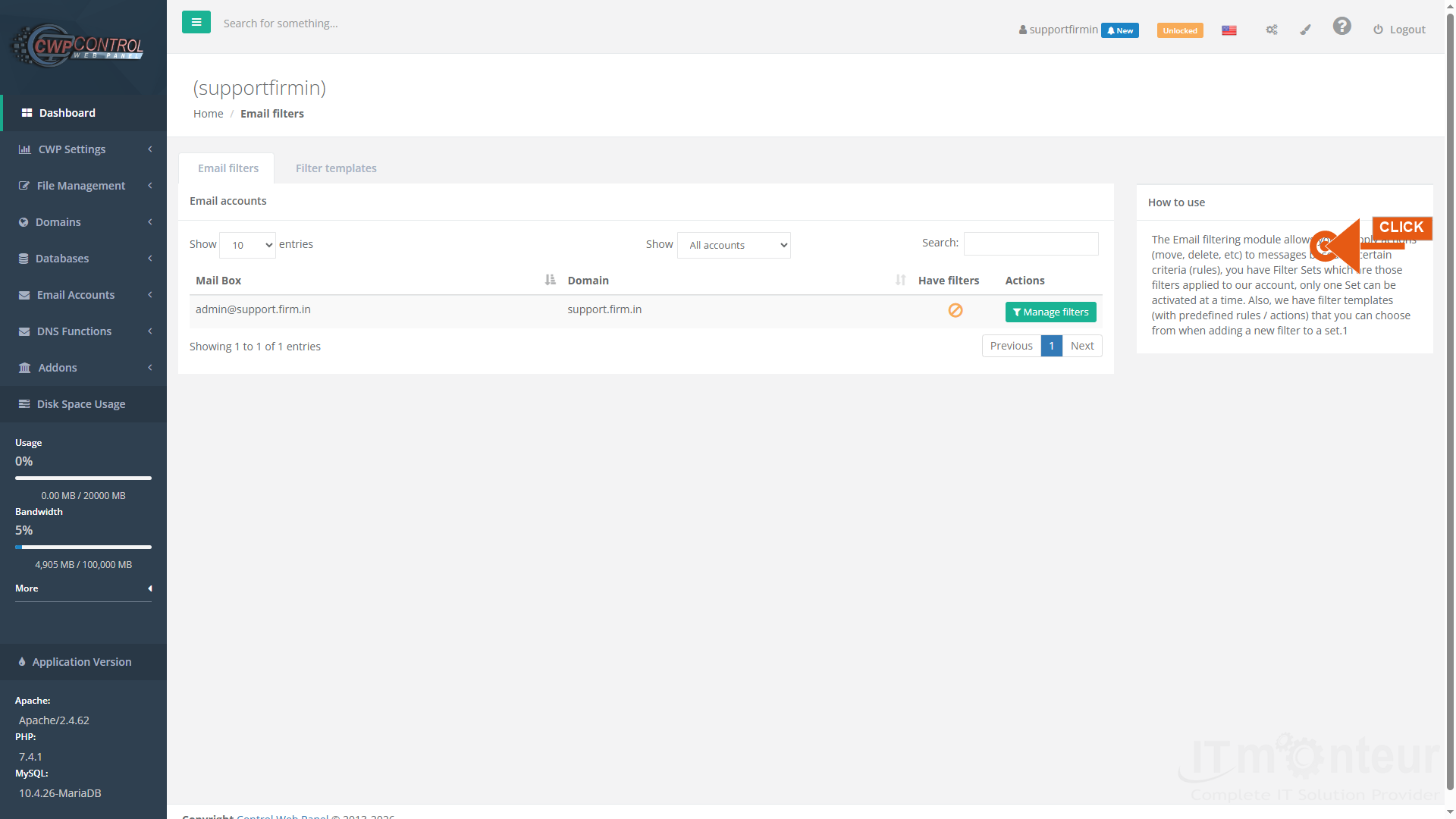
Creating a filter
- Open Email Accounts → Email Filters.
- Select the mailbox (or account-wide option if shown), then add a new filter.
- Set match conditions (example: From contains vendor@example.com, or Subject contains Invoice).
- Choose an action: deliver to folder, redirect to another address, discard, or mark as read — wording varies by panel version.
- Save and send a test message that should match. Adjust order if another rule catches the message first.
Notes
- Prefer filters for sorting; use Spam Expert for heavy spam when licensed.