WebMail
  Support
Outlook / Phone / Mail Client Setup
Panel path: Email Accounts → Email Accounts (Manual Settings)
Configure Microsoft Outlook, Apple Mail, or Android/iOS mail using the Secure SSL/TLS settings shown on your mailbox page.
Copy settings from CWP first
Always use the values from your own account — hostnames can differ by server.
-
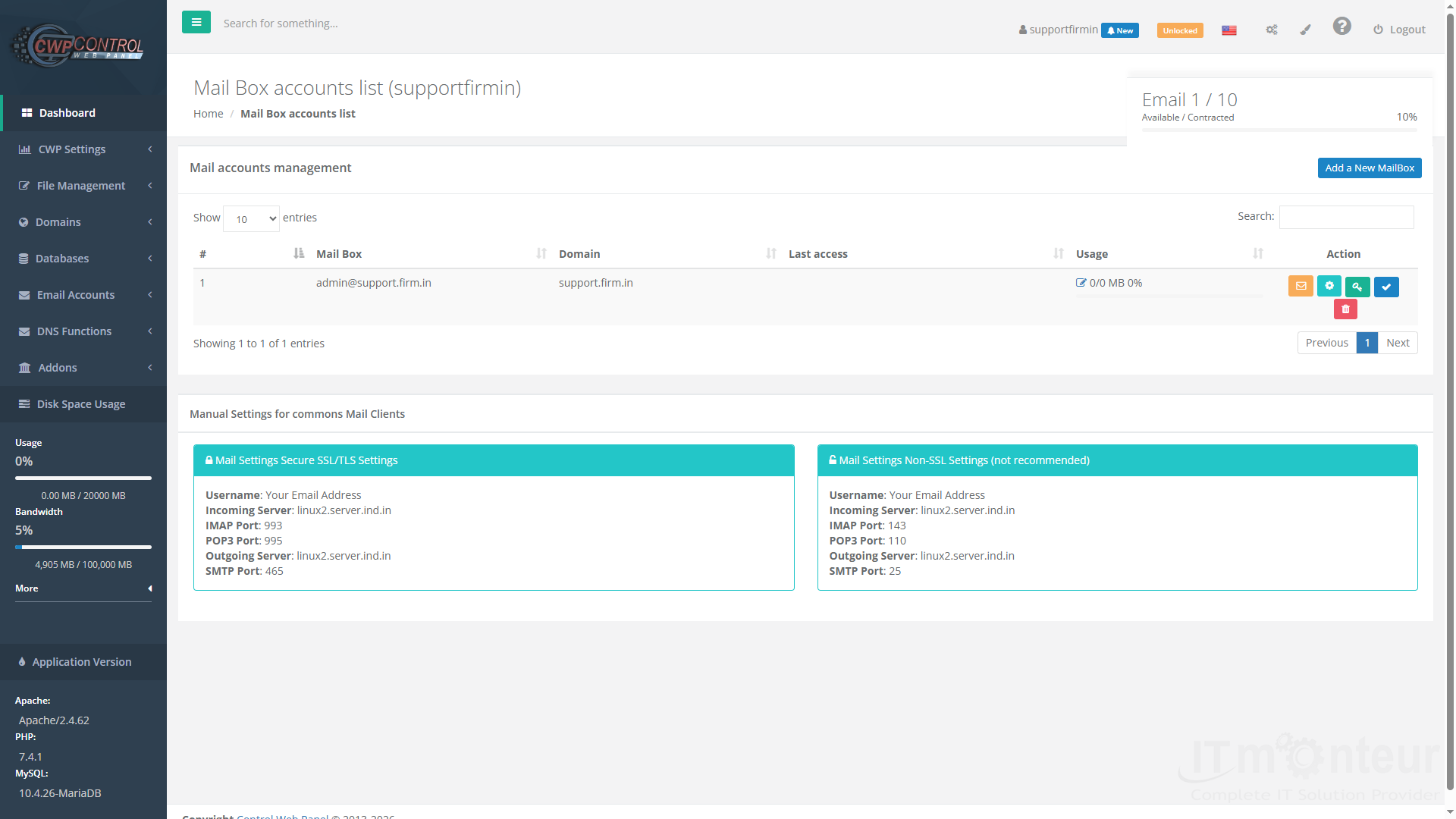
Open Email Accounts → Email Accounts and scroll to Mail Settings Secure SSL/TLS Settings.

Mailbox page with Manual Settings at the bottom. -
Note these values: Username = full email address; Incoming Server; IMAP Port 993 (recommended) or POP3 Port 995; Outgoing Server; SMTP Port 465. Encryption: SSL/TLS for all.
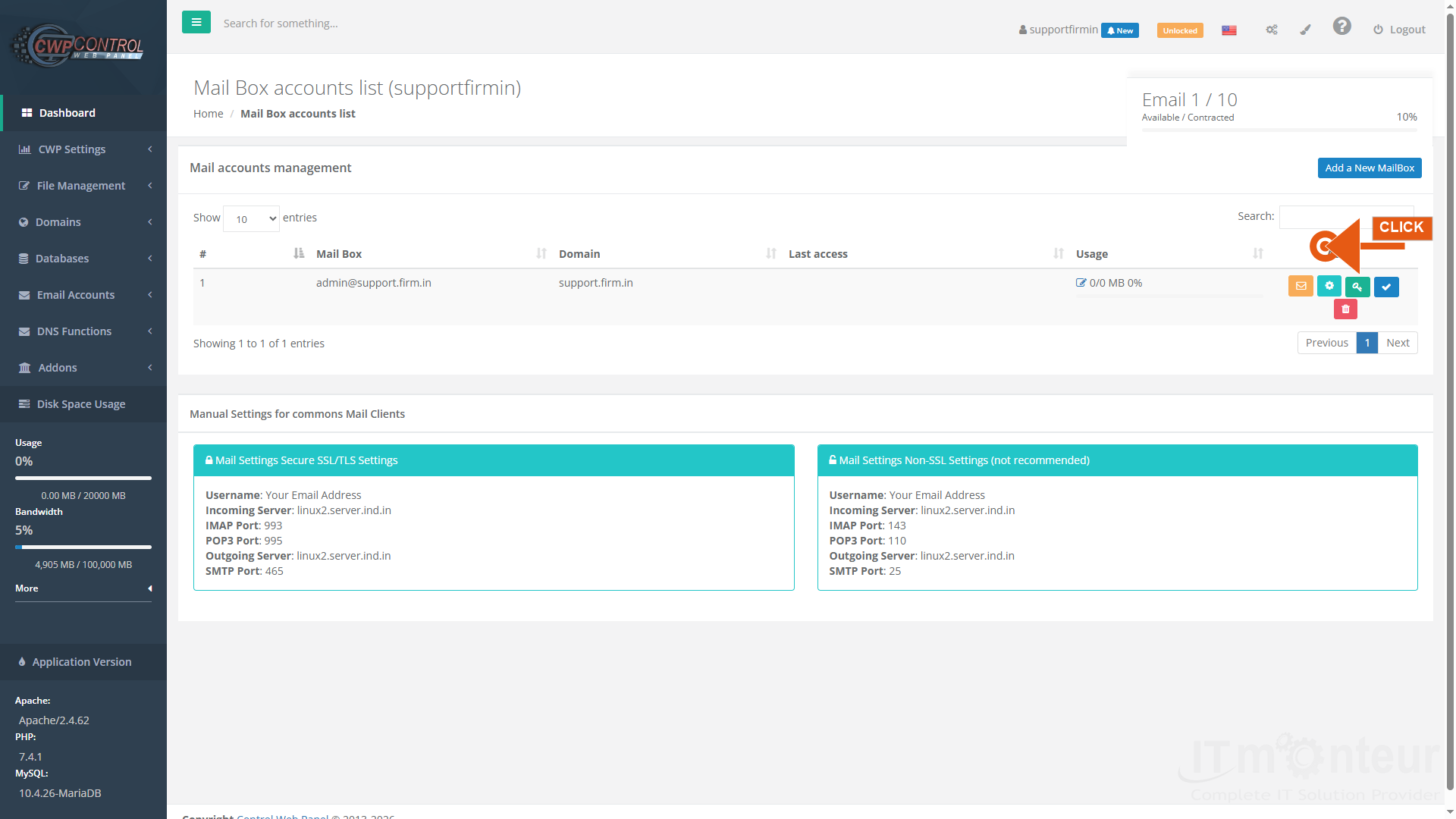
Microsoft Outlook (new account)
- Open Outlook → File → Add Account (or Outlook → Settings → Accounts → Add account).
- Enter the full email address and continue. If Outlook tries Microsoft 365 automatically, choose Advanced options / Let me set up my account manually / IMAP.
- Incoming mail server: hostname from Manual Settings (example: linux2.server.ind.in). Port 993. Encryption: SSL/TLS. Username: full email. Password: mailbox password.
- Outgoing mail server (SMTP): same hostname. Port 465. Encryption: SSL/TLS. Require authentication — use same full email and password.
- Finish and send a test message to an external address, then reply back to confirm both send and receive.
Phone and other clients
- iPhone/iPad: Settings → Mail → Accounts → Add Account → Other → Add Mail Account → IMAP with ports above.
- Android: Gmail or default Mail app → Add account → Other → Personal (IMAP) → same host/ports.
- Prefer IMAP (993) so mail stays on the server and syncs across devices. Use POP3 only if you intentionally download and remove from server.
Notes
- Authentication failed usually means wrong password or username without the @domain part — use the full address.
- Cannot send (but can receive) usually means SMTP port/encryption wrong — use 465 SSL or ask support for 587 STARTTLS if your network blocks 465.