WebMail
  Support
AutoResponder
Panel path: Email Accounts → AutoResponder
Autoresponders send an automatic reply when mail arrives — useful for vacation or out-of-office messages.
Understanding AutoResponders
Set subject, message body, optional HTML, and a date/time period for when replies are sent.
Creating an AutoResponder
-
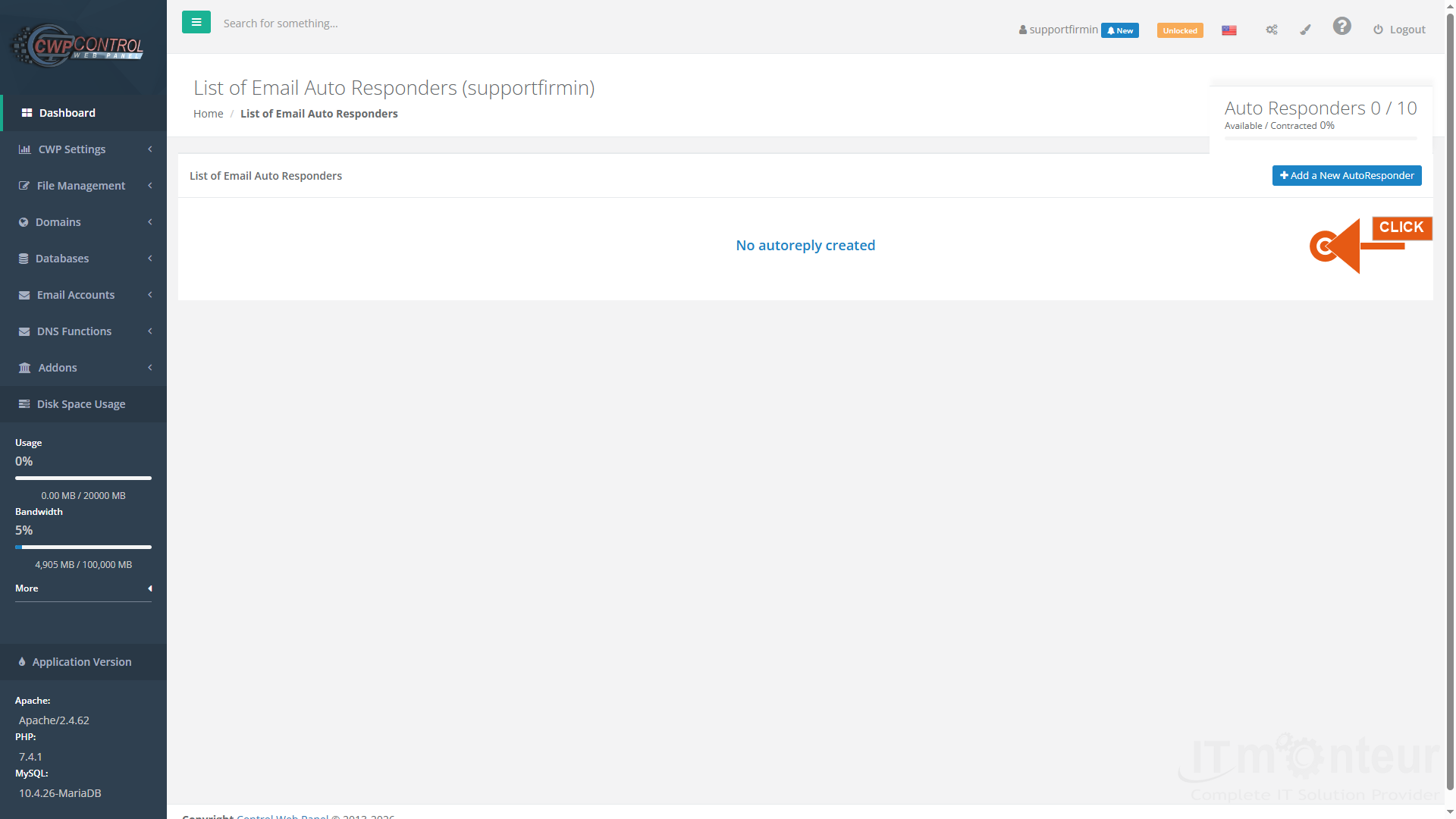
Open Email Accounts → AutoResponder. Click Add a New AutoResponder.

Step 1 — List of Email Auto Responders. Click Add a New AutoResponder. -
Choose Email + Domain, enter Subject and Message, optionally enable HTML, set date/time period, then save.
-
Send a test from an external account and confirm the auto-reply is received once (respect reply interval).
Managing AutoResponders
- Disable or delete autoresponders when you return from vacation.
- Adjust the reply interval to avoid sending duplicate auto-replies to the same sender.