WebMail
  Support
AutoSSL (Let’s Encrypt)
Panel path: Domains → AutoSSL
Issue free Let’s Encrypt certificates once DNS points to this server. For paid / OV / EV / wildcard certificates, use Custom SSL instead.
Understanding AutoSSL
Validation requires the domain to be reachable on this server (usually HTTP port 80). AutoSSL is Domain-Validated only — it does not prove company identity like a commercial OV/EV cert.
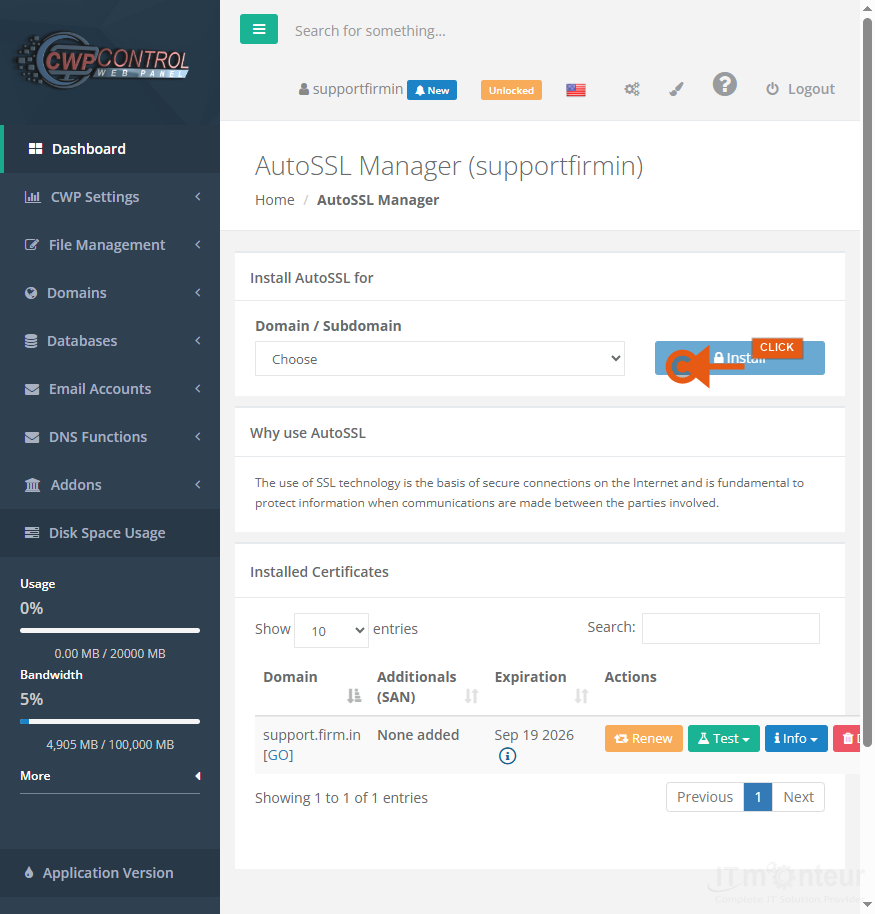
Issuing a certificate
- At the registrar (or DNS host), point the domain’s A record (and www CNAME/A if used) to the hosting IP from IT Monteur — or use IT Monteur nameservers.
- Wait until dig/nslookup shows the correct IP (propagation can take minutes to hours).
- Open Domains → AutoSSL.
- Select the domain (and www variant if listed separately) and Issue / Renew the certificate.
- Visit https://yourdomain.com and fix mixed-content (HTTP images/CSS) if the padlock is broken.
If AutoSSL fails
- Confirm DNS still points here and port 80 is not blocked by Cloudflare Flexible-only or a firewall.
- If Cloudflare proxy (orange cloud) is on, temporarily set grey-cloud (DNS only) or use Full Strict with a valid origin cert, then retry.
- Clear domain cache (Domains → Clear Cache) and reissue.
- For commercial or wildcard certificates, follow Custom SSL (CSR → purchase → install) instead of AutoSSL.
Notes
- Validation needs the domain reachable on this server (usually HTTP port 80).