WebMail
  Support
Domains
Panel path: Domains → Domains
Add addon domains and confirm each domain’s document root before pointing DNS.
Understanding Domains
Each domain maps to a folder under your account. Main site files usually live in /home/USERNAME/public_html/.
Adding a domain
-
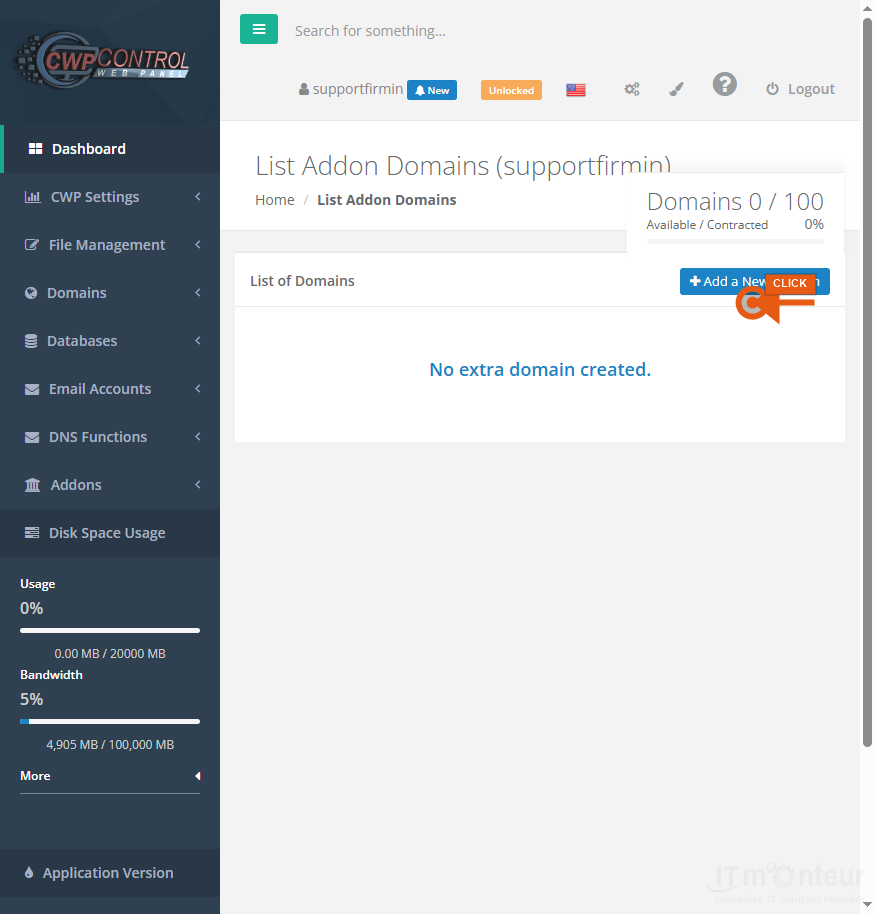
Open Domains → Domains. Review existing domains, then open the add form.

Step 1 — Domains list. -
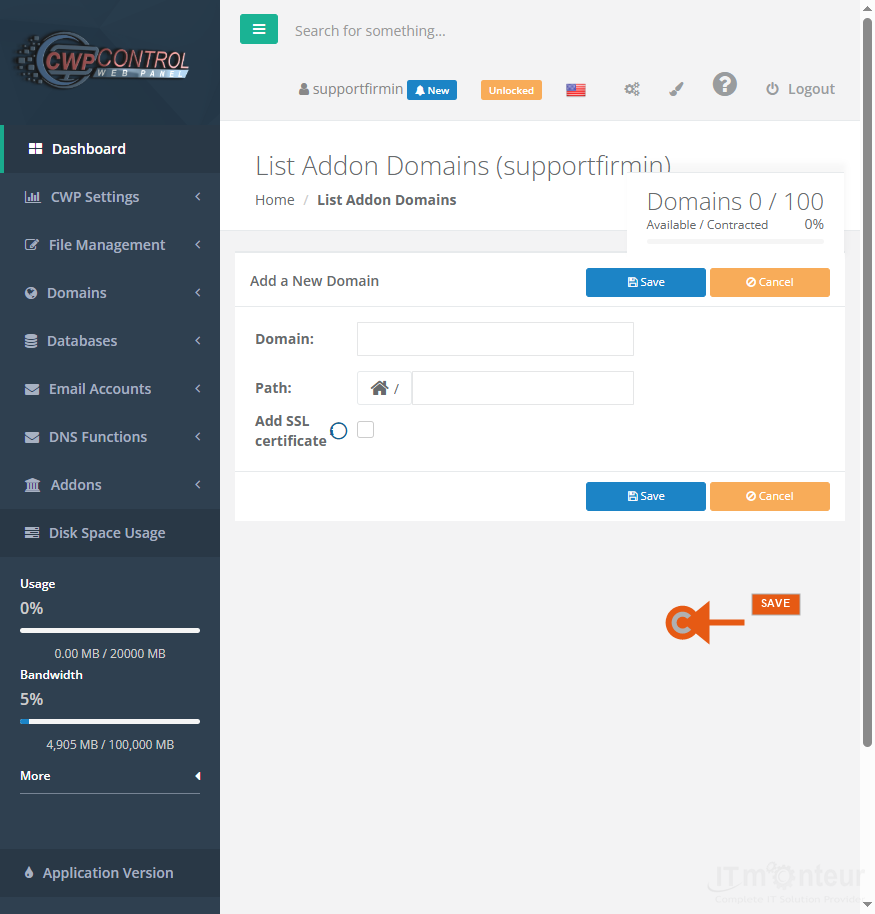
Enter the domain name and confirm the document root (often under public_html). Save.
Step 2 — Add domain form. -
At your domain registrar, either:
— Point nameservers to the IT Monteur / hosting nameservers from your welcome email, or
— Keep external DNS and create an A record for@(andwww) to the hosting IP shown in the panel. -
Wait for DNS propagation, then issue AutoSSL (free) or follow Custom SSL if you purchased a commercial certificate (CSR → provider → install).
Managing domains
- Edit document roots only when you understand where site files must live.
- Remove unused domains to stay within plan limits.
Notes
- Main site files usually live in /home/USERNAME/public_html/.
- SSL will fail until DNS points to this server.