WebMail
  Support
Backup
Panel path: File Management → Backup
Generate and download account backups before major changes or migrations. Restores should be planned carefully.
Understanding Backup
Backups can include home files, databases, and email depending on options shown in your panel.
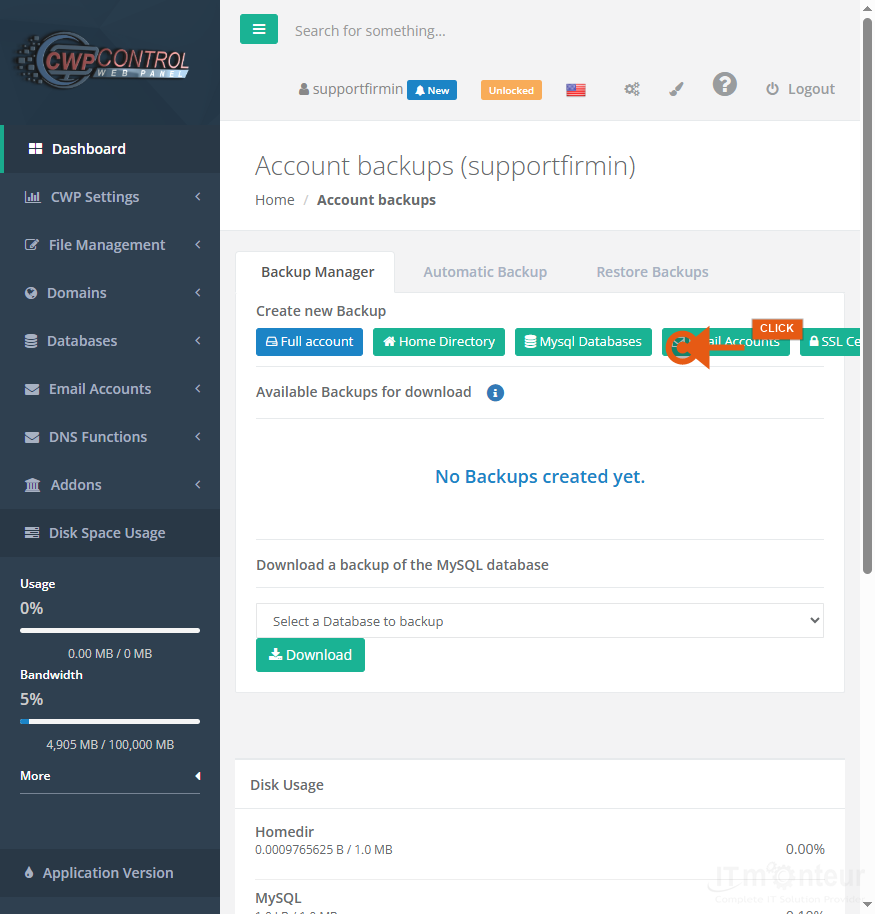
Creating a backup
- Open File Management → Backup.
- Generate a full or partial backup (home, databases, email — options vary).
- Wait until the job finishes, then download the archive to your PC.
- Store important backups off-server as well (external disk or cloud).
Before you restore
- Restoring can overwrite live files and databases. Take a fresh backup first.
- If restore options appear in the panel, restore only the components you need (home / DB / mail).
- For complex restorations or migrations, open a ticket with IT Monteur rather than overwriting production blindly.
- After restore, retest the website, admin login, and email; clear caches if the site looks stale.
Notes
- Before major changes (WordPress updates, migrations), take a fresh backup.