WebMail
  Support
FTP Accounts
Panel path: File Management → FTP Accounts
Create FTP or SFTP logins for desktop clients such as FileZilla or WinSCP.
Understanding FTP Accounts
Each FTP user has a username, password, and home directory. Limit access to one site folder when possible.
Creating an FTP account
-
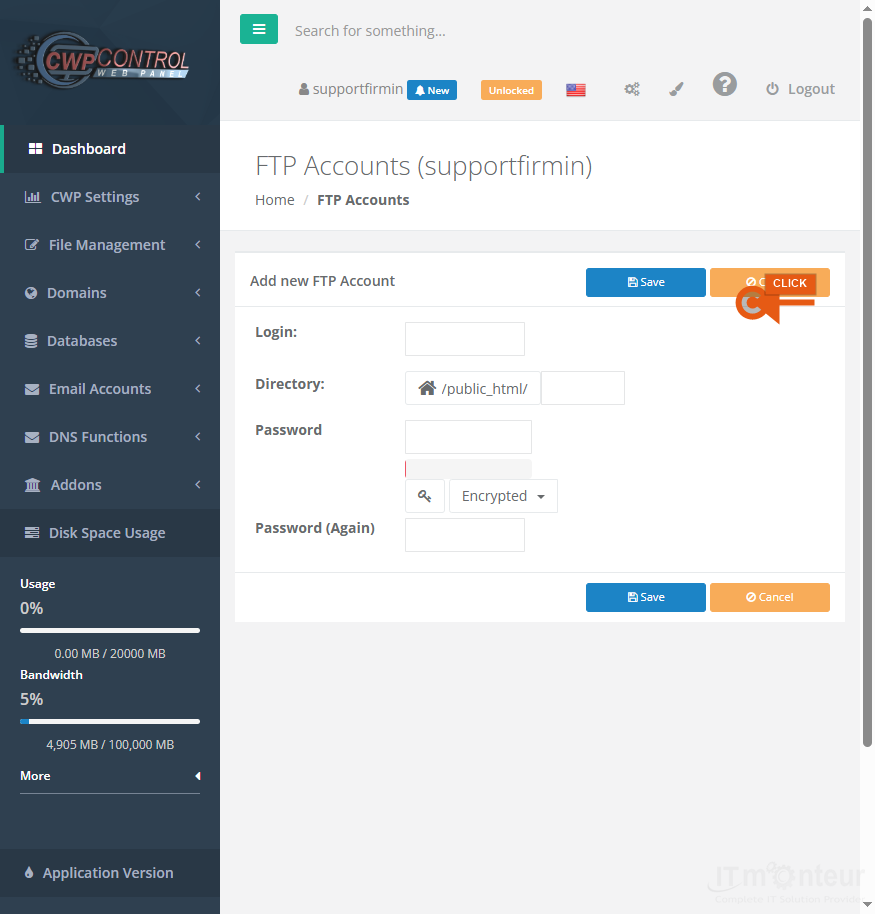
Open File Management → FTP Accounts. Review existing accounts, then click to add a new one.

Step 1 — FTP Accounts list. -
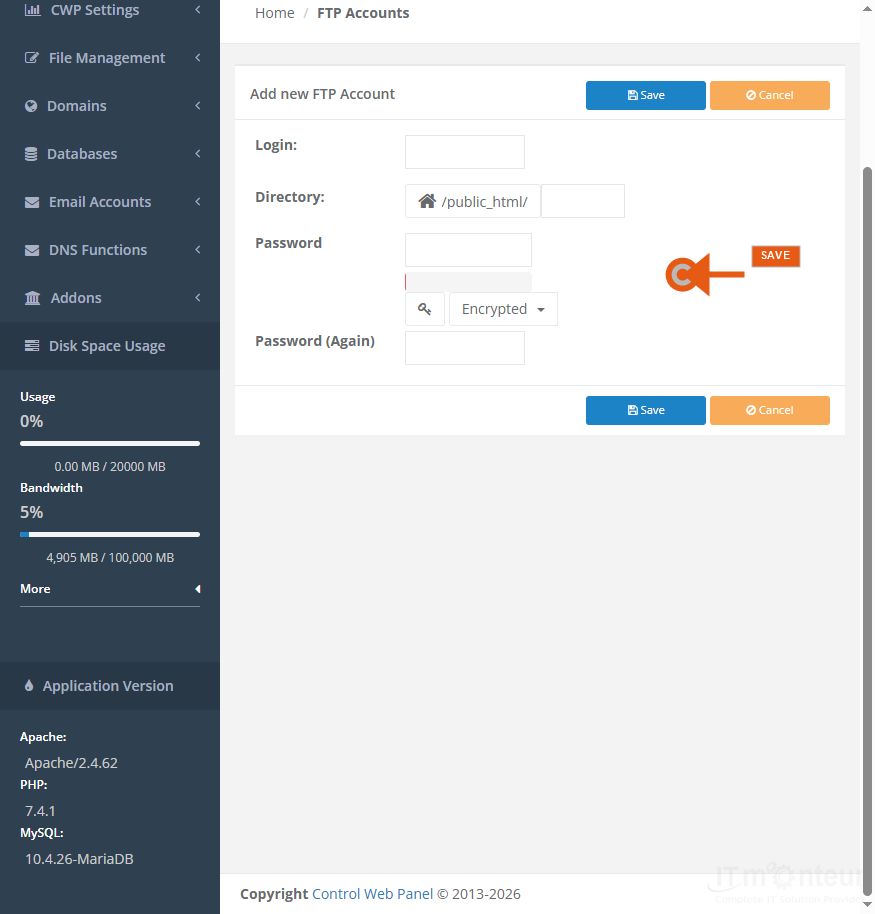
On the add form: enter username, strong password, and home directory (for example public_html/yoursite). Save.
Step 2 — Add FTP account form. -
Connect with FileZilla or WinSCP using the Manual Settings shown on the FTP page:
— Host: server hostname or IP (example values appear on your panel)
— Protocol: prefer SFTP on port 22 when enabled; otherwise FTP on port 21
— Username / Password: the FTP account you created
— Default remote path: the home directory you set (often under public_html)
Managing FTP accounts
- Change passwords from the account list when credentials may be compromised.
- Delete unused FTP users to reduce attack surface.
- Do not share the main CWP login for file transfers — create a limited FTP account instead.
Notes
- Host is usually linux2.server.ind.in or your server IP — always confirm from Manual Settings on your account.